
User List
Follow the below steps to view/manage the users:-
1. Click  icons from the user’s menu
2. Click “Company Users” menu option to find below screen having the list of users:-
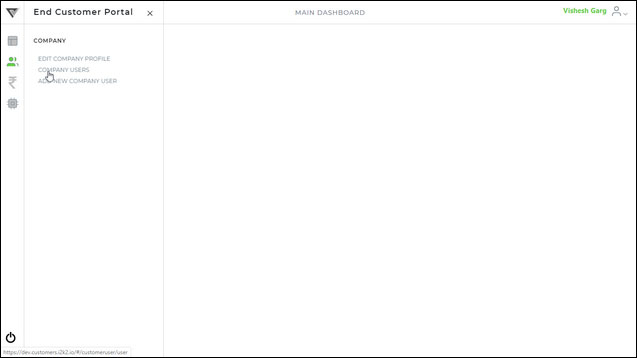
3. Click “Company Users” menu option to find below screen having the list of users:-
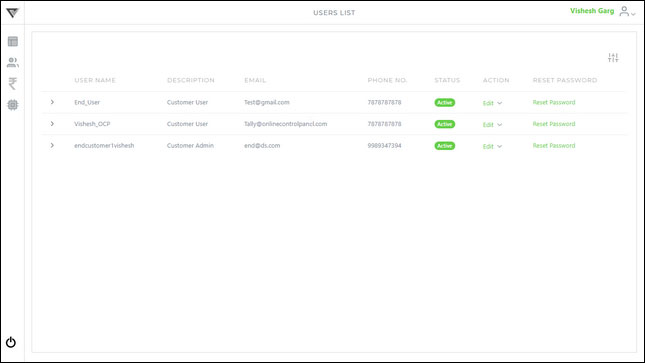
4. Click  icon to find the filter criteria options (shown as below):-
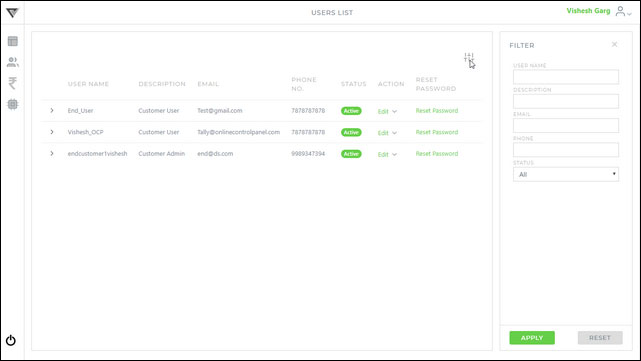
5. Enter the required criteria to filter the users and click Apply (shown as below):-
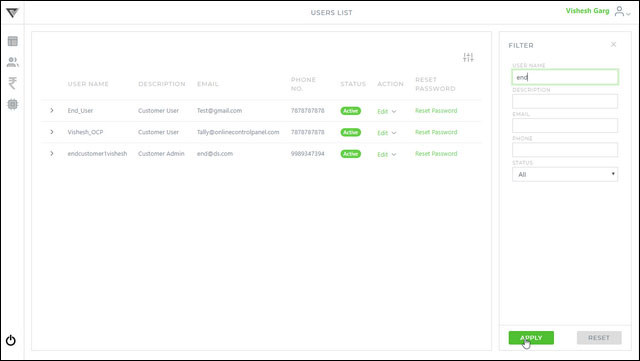
Follow the below steps to reset the filter criteria:-
1. Click  icon from the filtered user list and you will get below screen:-
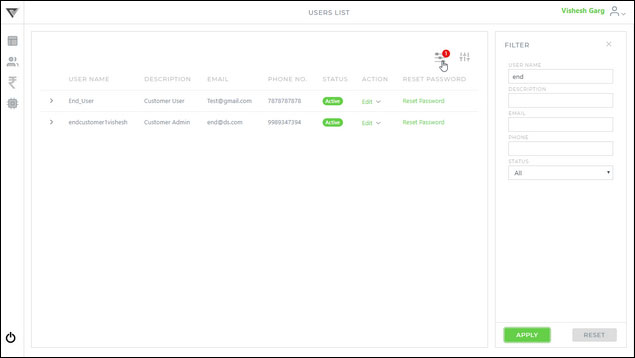
2. You can remove filter using  button of each filter criteria.
3. Click the “Reset” button to remove all filters,
4. “Reset” button is also available with the filter criteria selection option beside the “Apply” button.
Change User’s Detail
1. Click icons from the user’s menu & select “Company Users” to find below screen :-
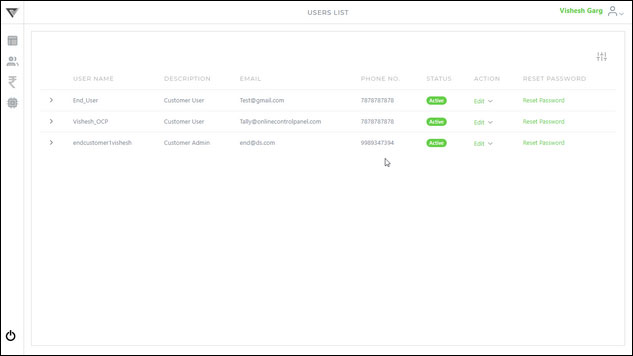
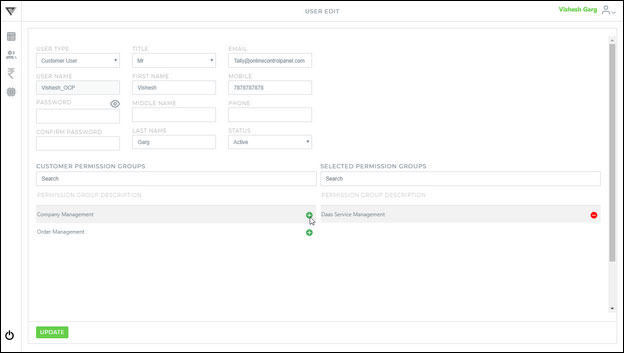
2. Click “Edit” option for the concerned user to find the screen having below options:-
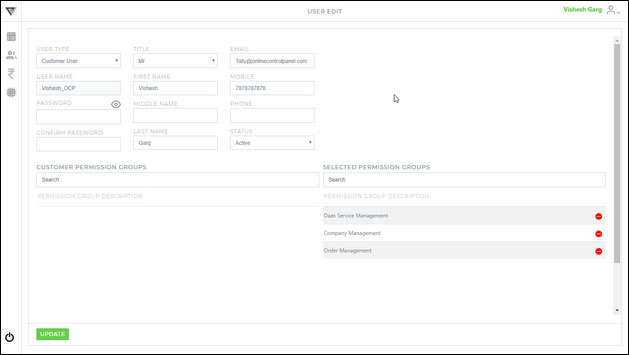
3. Modify user details as required.
Assign required permission to the user by clicking  icon in the “User Permission Group” as shown below (applicable only for the user type “Customer User” as admin user have all the rights by default), You can also revoke the permission using
  icon.
icon.
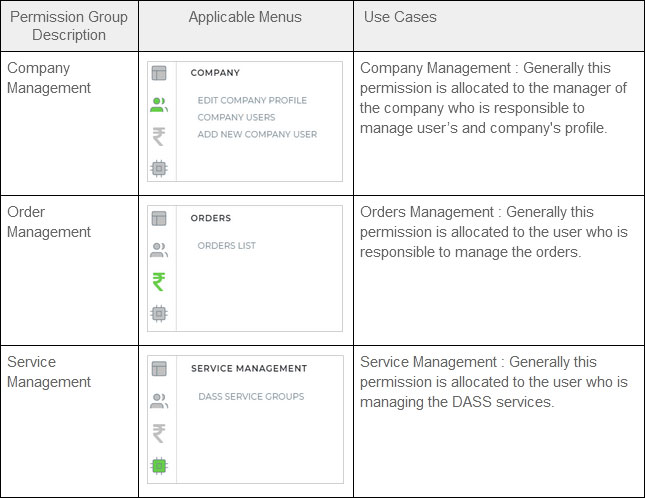
Find the permissions detail as shown below :-
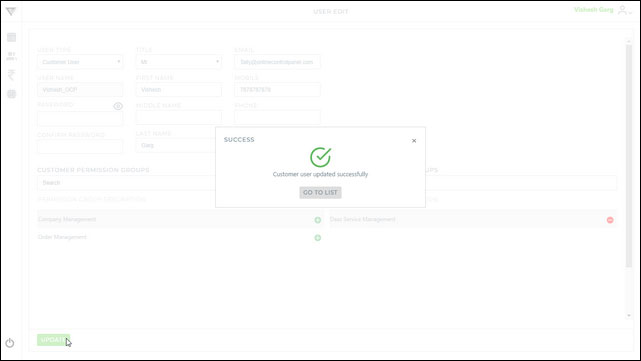
4. Click the “Update” button to save your changes.